FSM Application
Timeline: This PI (project increment) was delivered in 3-4 Weeks
Role: Lead UX Designer for end-to-end tablet and mobile application
Tools: Sketch, Sketch Cloud, Figma, InVision + Material Design
Challenge
When I initially stepped in as the sole designer for Neighborly’s technology department, the design had already begun production—from a third party design team. On top of re-establishing best design practices and identifying large issues with the design delivered so far, I was tasked to lead the design development of both the tablet and mobile devices. For this project, I re-designed what was already delivered from the outsourced design and strategized on making the most intuitive field service application for our technicians and dispatchers. After establishing the core component and their responsively, I delegated the remainder of the tablet portion of the design to another designer who I managed and worked closely with.
Project Objectives:
• Fix existing design and incorporate iOS compliant standards
• Re-think and design workflow to complete certain tasks
• Advising Neighborly, as their only designer, on projecting these updates and practices to all devices outside of mobile/tablet
• Strategizing content and experience flows with VP of Technology, all technology directors, and all stakeholders of this project.
The Mobile Design
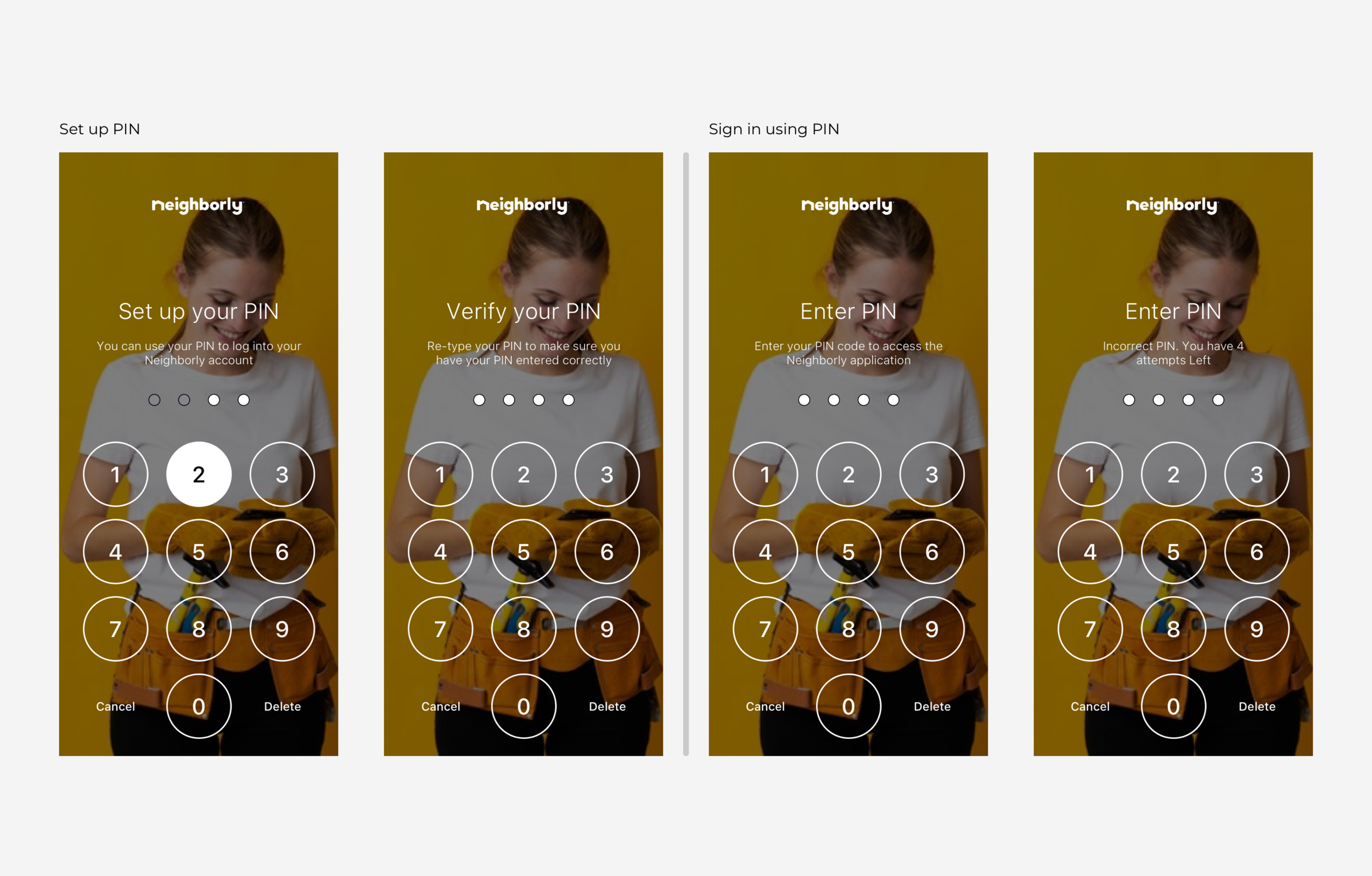
When I officially inherited these designs from a design contracting company, development had already begun and space for change was very limited. Since the timeline did not accommodate major updates, I had to work with what I was given. To start out, I began working on authentication for signing in and updating existing screen designs as I went.
Sign in
Landing Screen - “Today”
After signing in, users will land on the "Today” screen, where the field service technician would be able to view and access all the appointments for that day. The menu screens on the left show my design implementations after receiving the designs (since this structure was already developed) and the screens on the right show my proposed placement of the navigation menu—to be implemented at a later PI.
Updated (temporary) vs proposed menu design
Service Request (generating a lead)
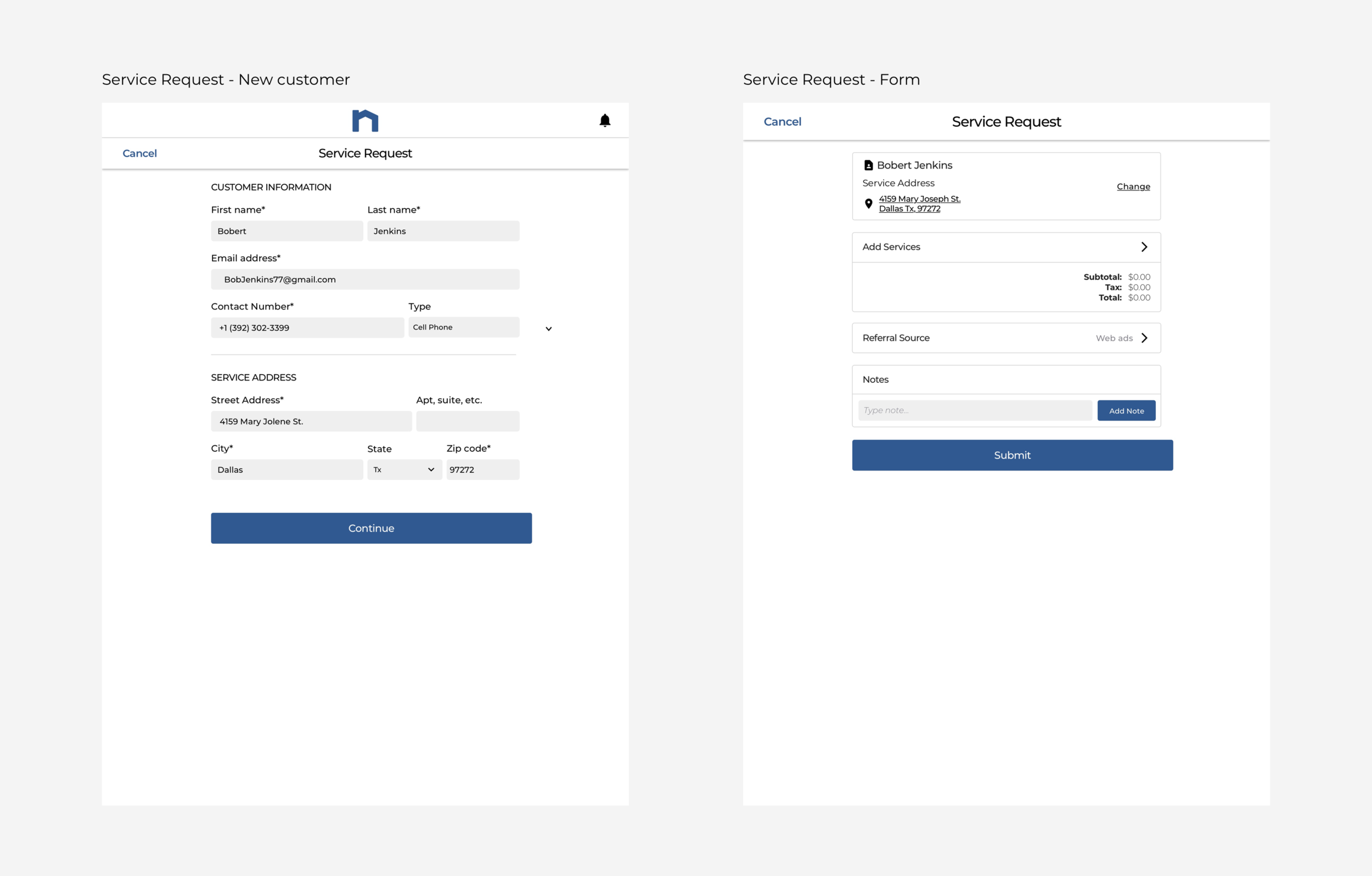
Say a service technician was in the field and needed to capture a lead some time during their work hours. I created a solution that would restrict certain features (such as complete access to all customer information and self-scheduling) but also capture enough information for a dispatcher in a call center to follow up with. This flow involves:
Selecting customer (or adding a new customer)
Input referral source
Add services
Include any details in the notes section (one-time note for service requests)
Search for customer
New customer
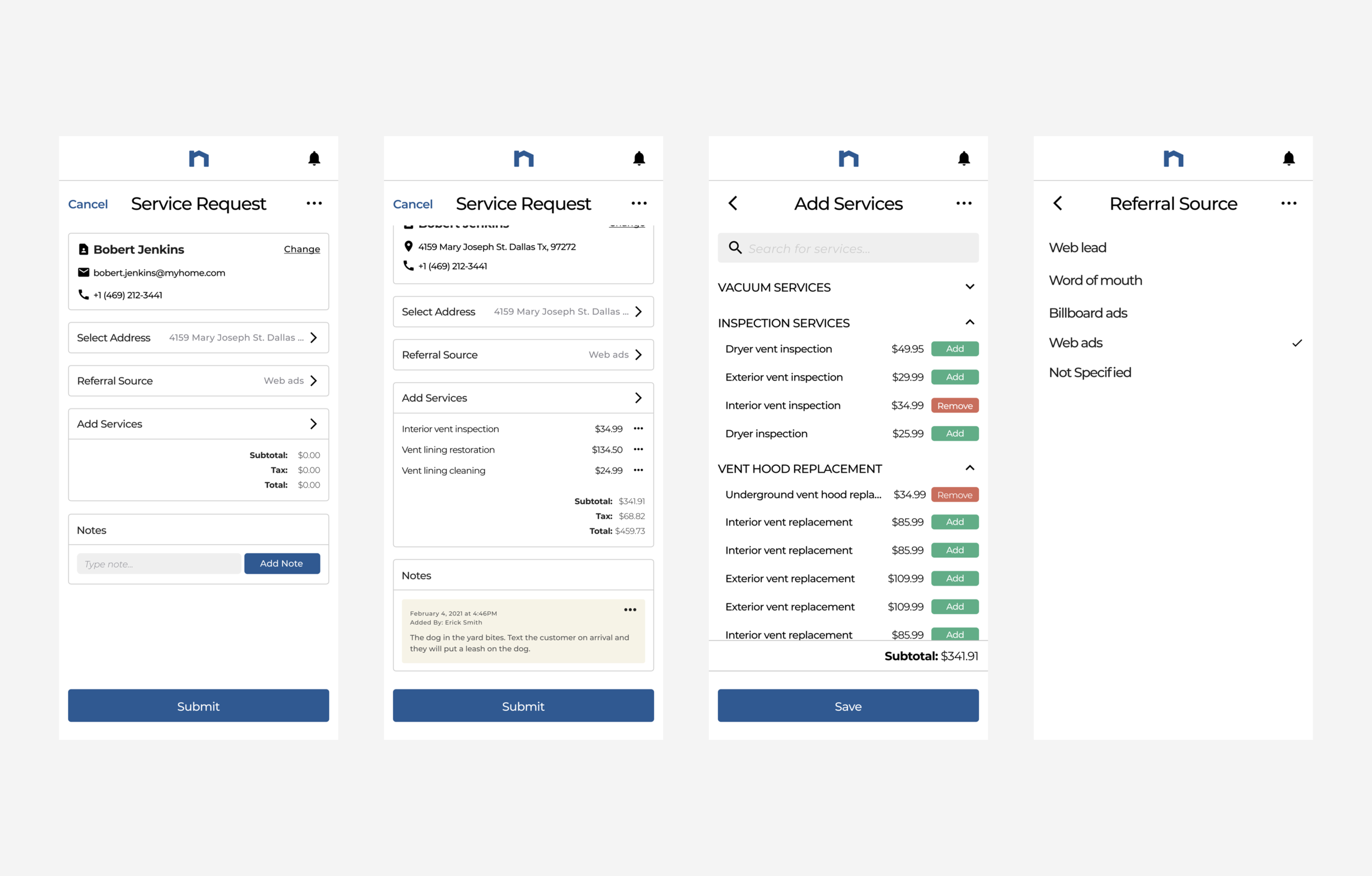
Filled out service request
Edit Existing Work Order
Technicians do not have the ability to create work orders, though they are able to modify work orders in their schedule. This flow depicts additional functionality from the “service request” flow and has additional options depending on the work order status. The work order flow is accessed via selecting a work order scheduled on the “today” landing screen.
Edit work order + status examples
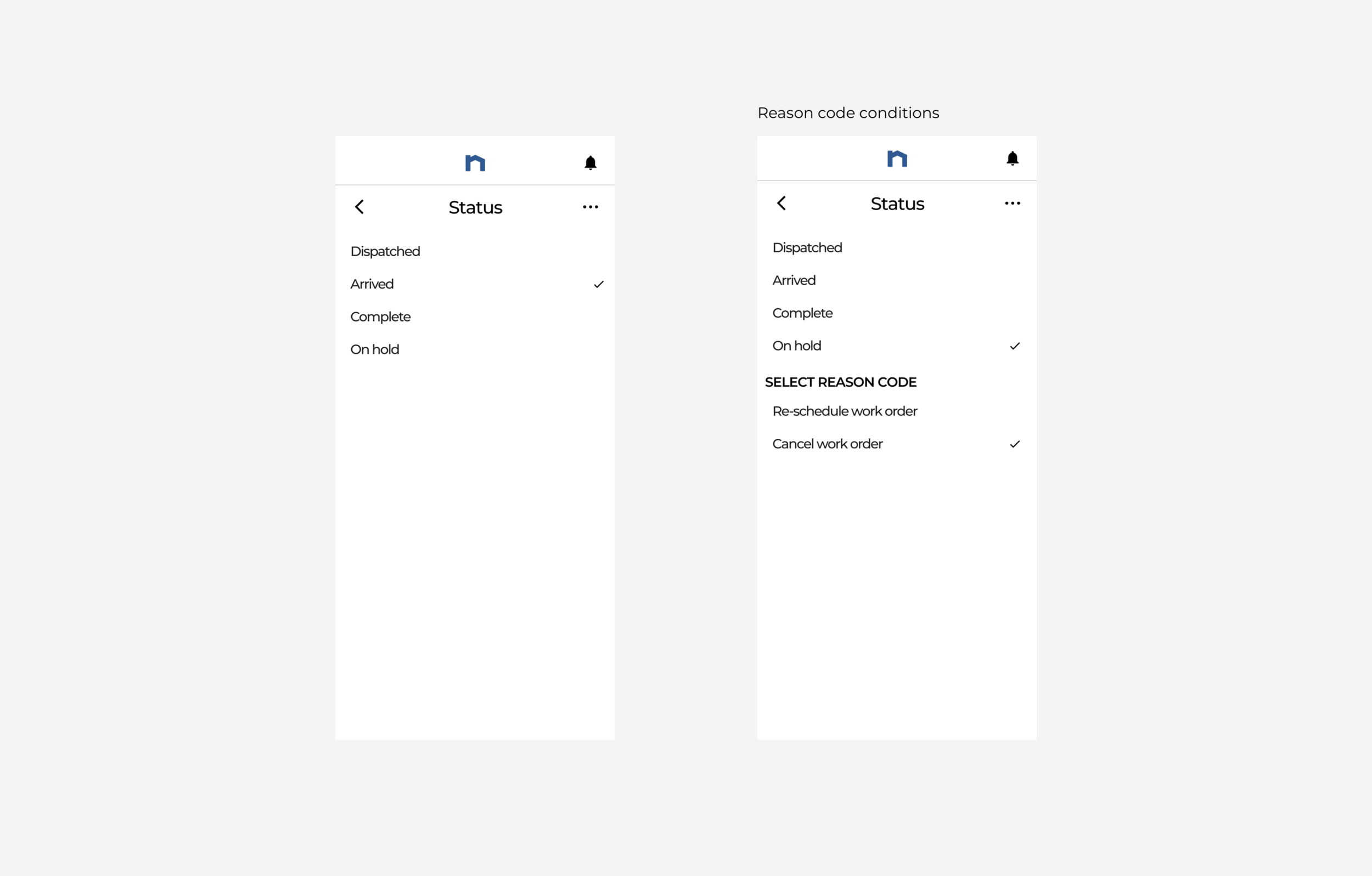
Work order status
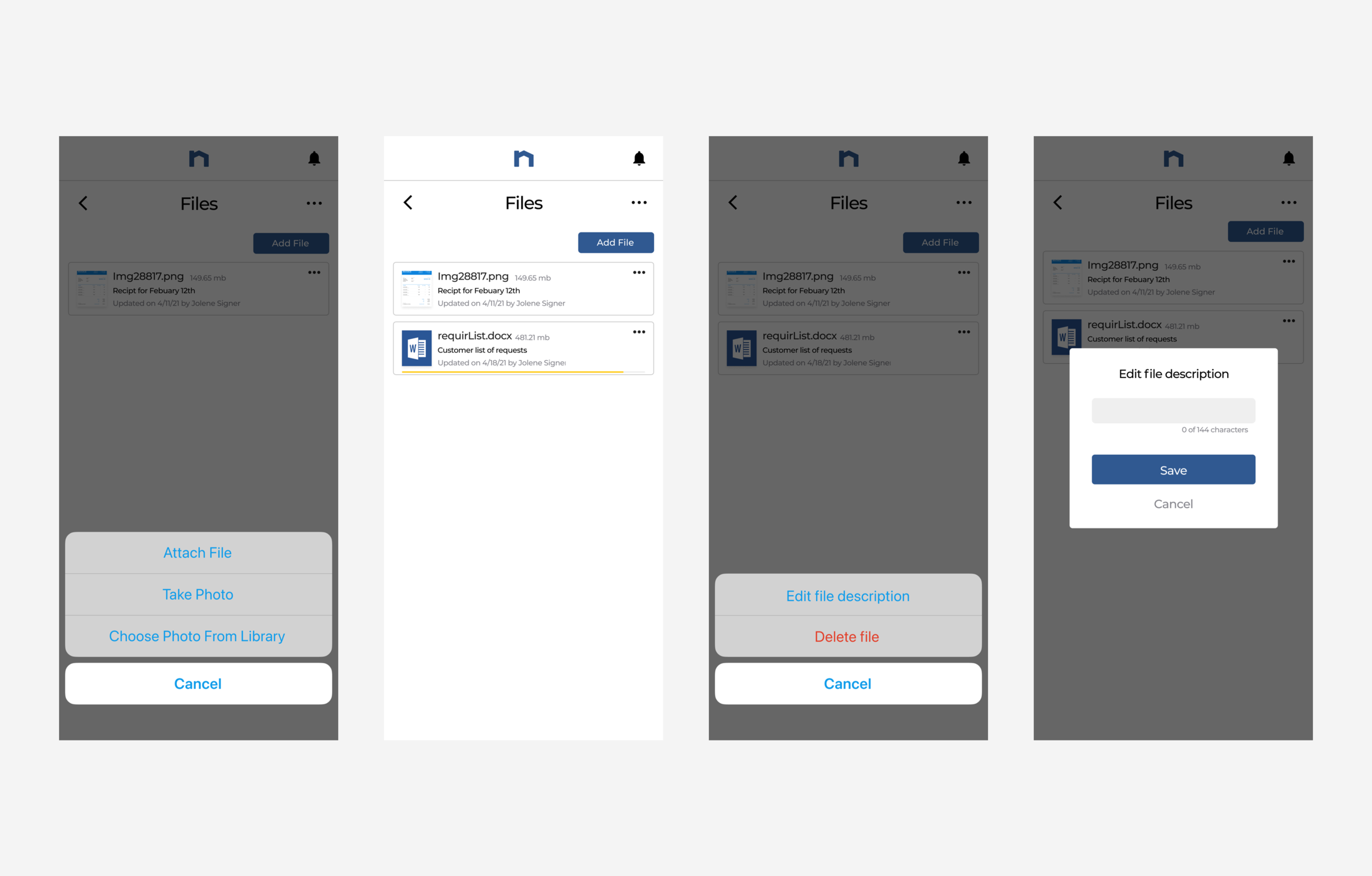
Attach/edit files
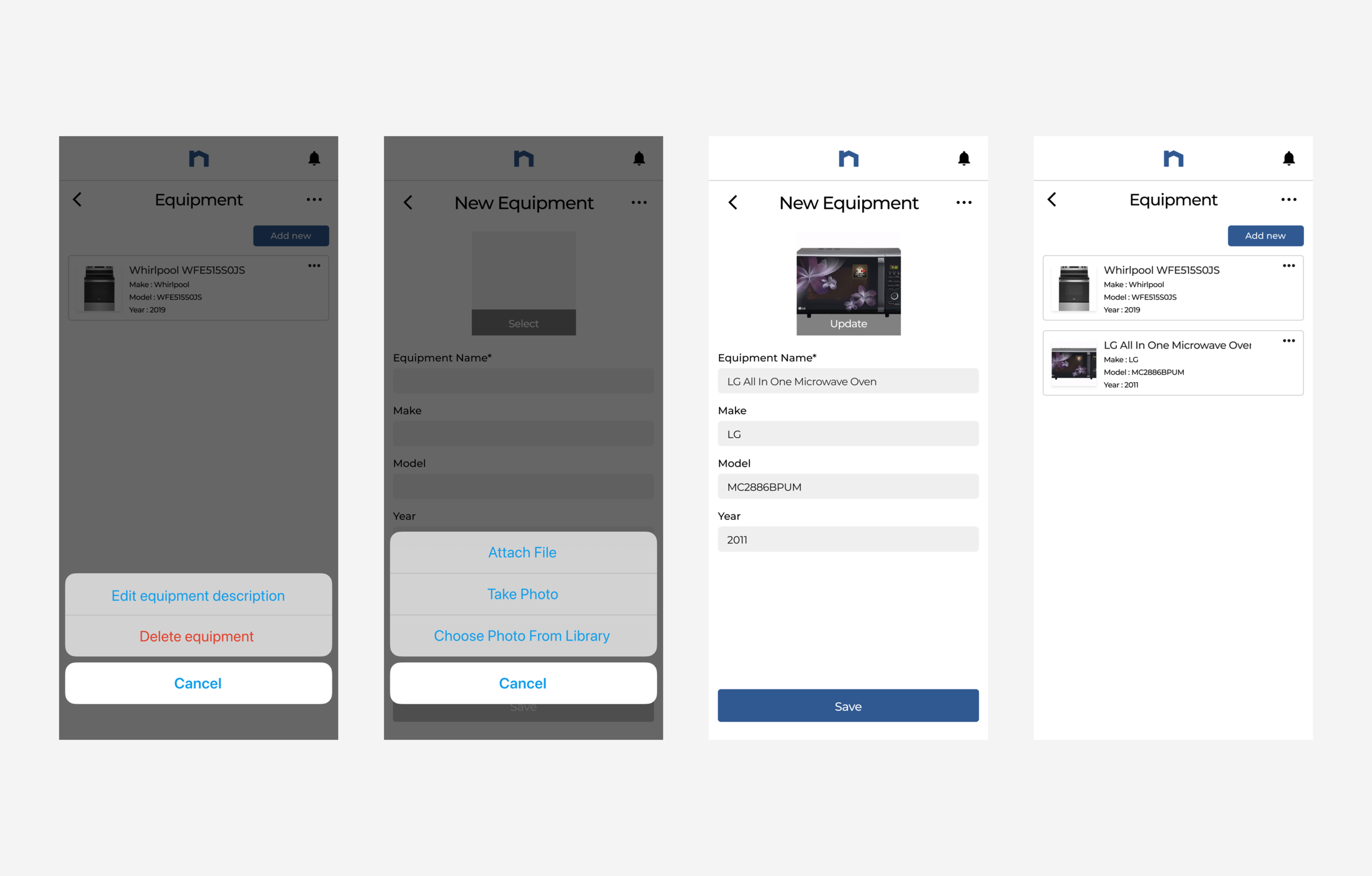
Add customer’s equipment information
Settings Screens
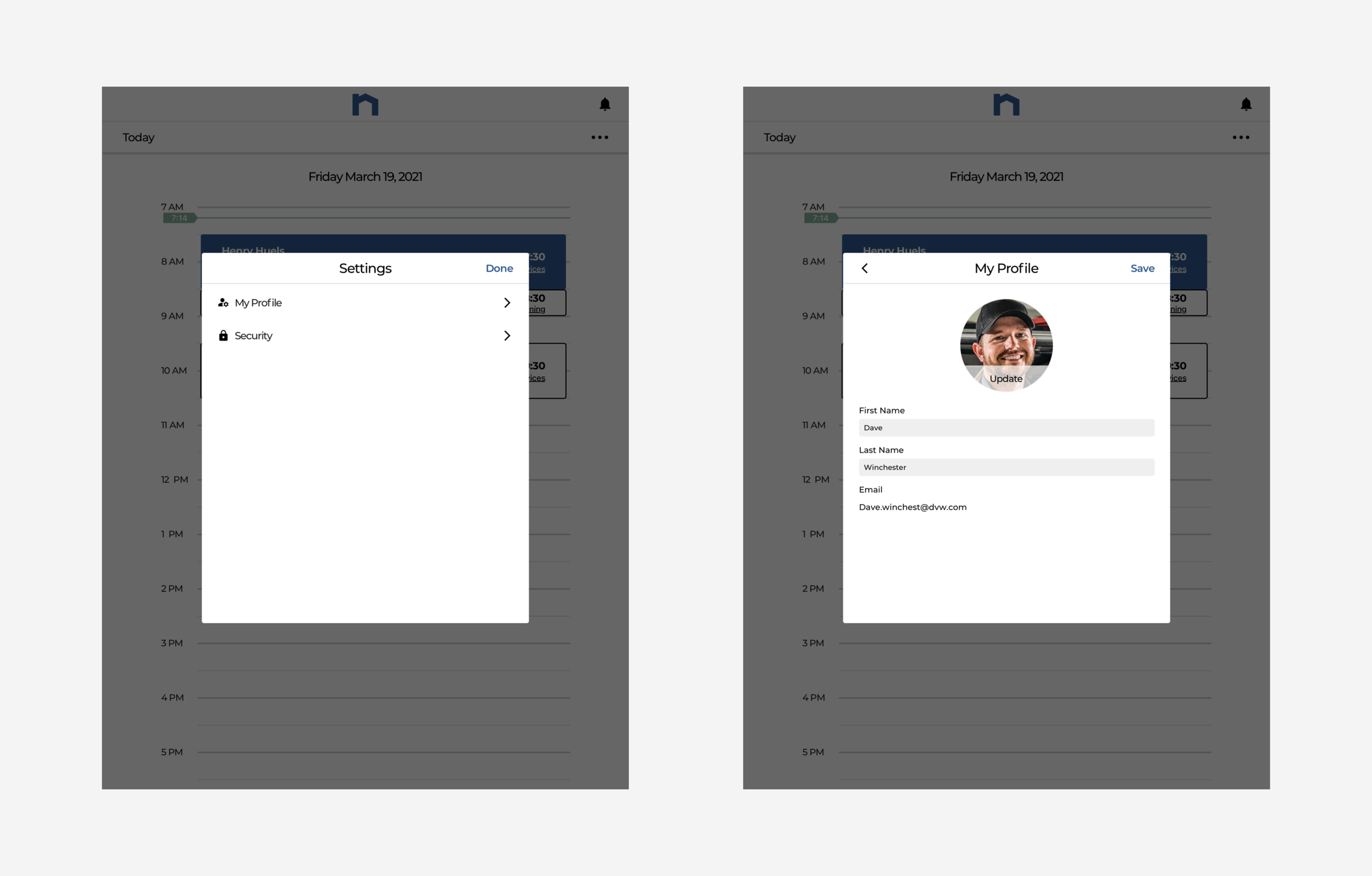
These pages were developed because authentication types were now feature requirements for the application. Initially, our team decided to include biometrics for both mobile and tablet devices, however it proved to be an issue if tablet devices were going to be shared amongst the technicians. Biometrics were placed on hold for now, but PIN was a feature we kept for both platforms. The options to modify the account password and PIN (to quickly access the application for the day) are displayed below.
Settings
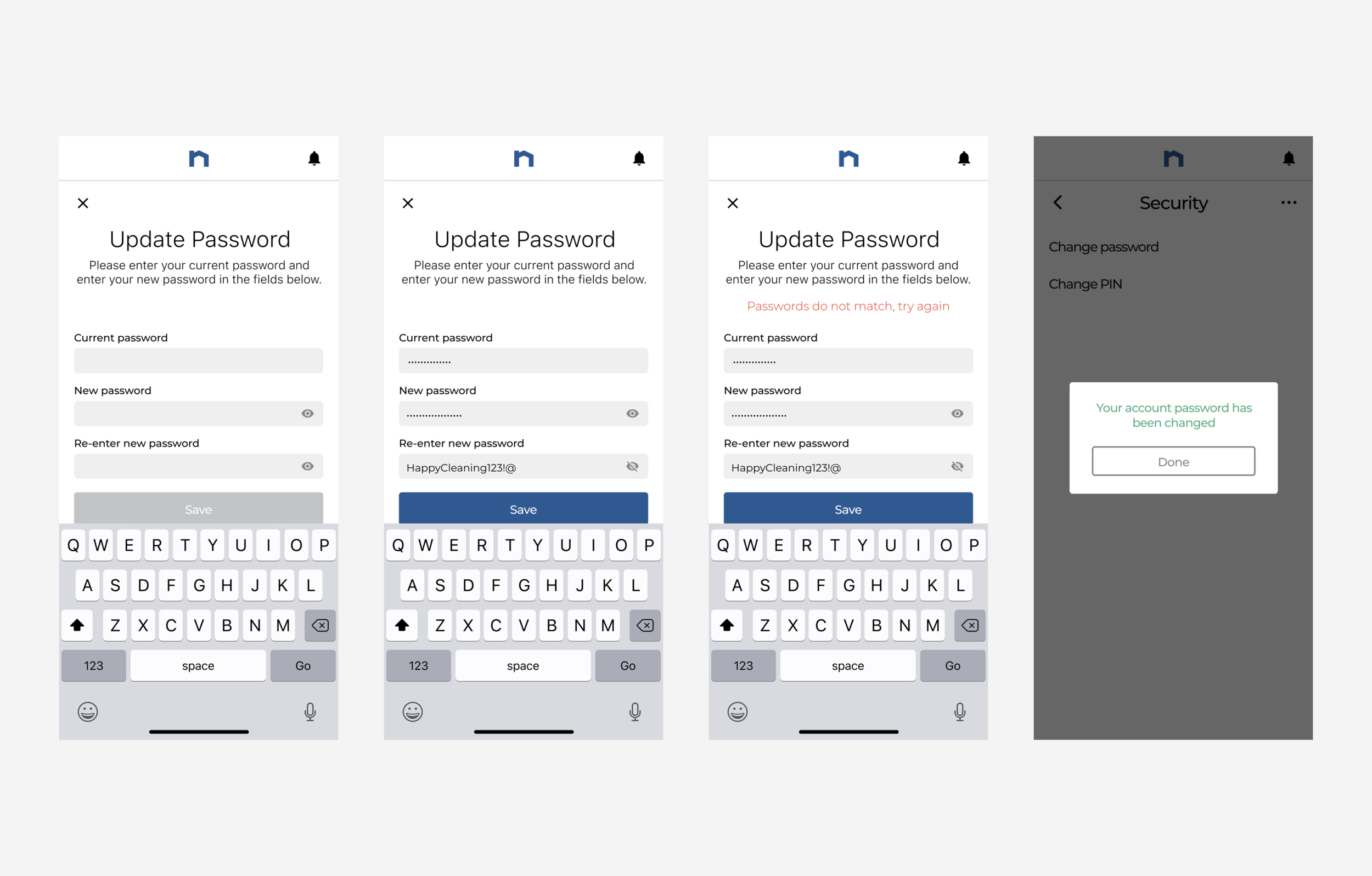
Update password flow
Change PIN
The Tablet Design
The tablet designs were initially created, managed, and designed by me. Towards the end of this PI delivery, the rest of the Tablet screens were delegated to UX Designers who reported to me. The tablet screens below do not reflect the latest changes/updates the mobile screens have today. Below are screens that represent the gist of the iPad designs for this application.
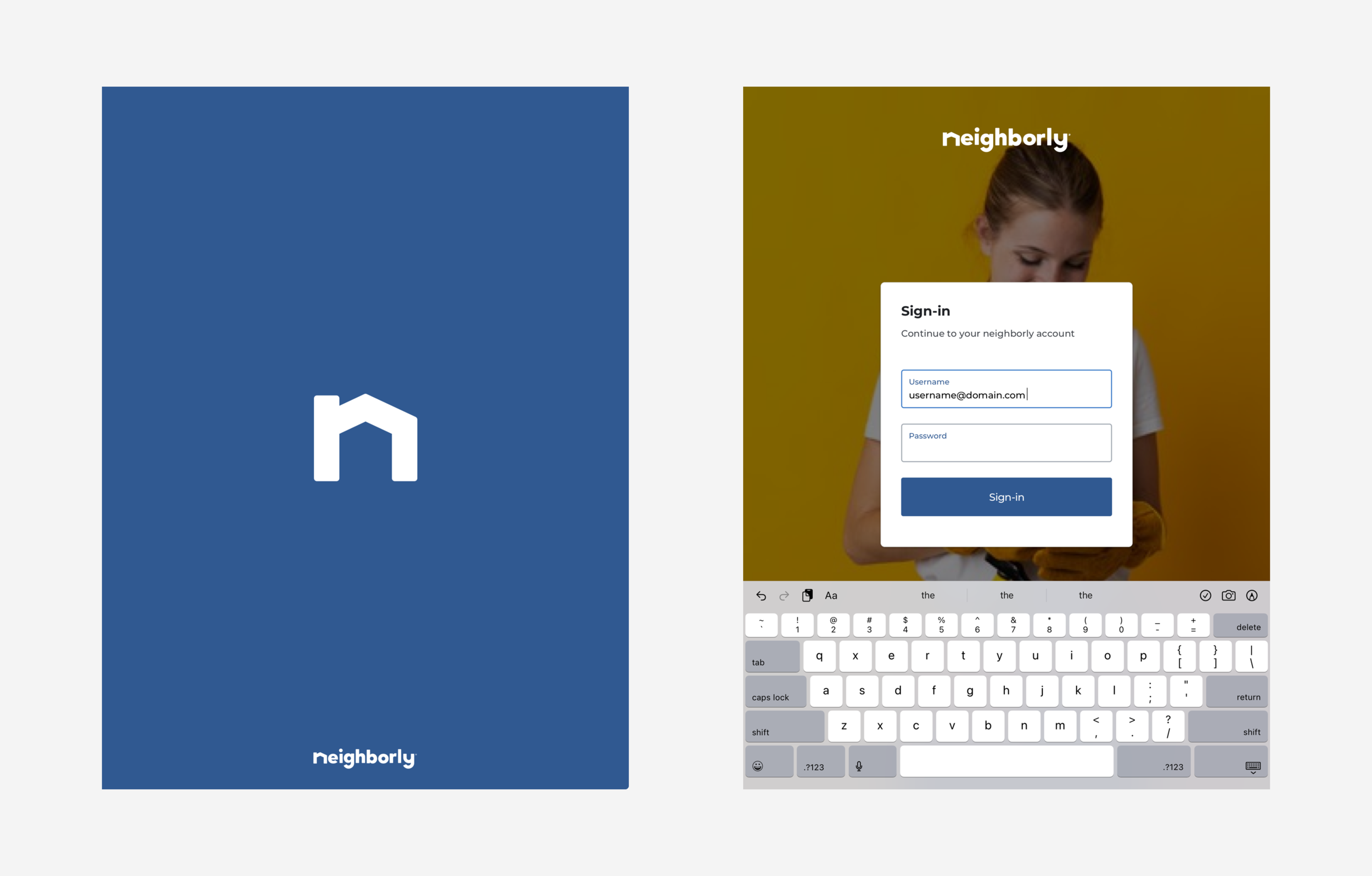
Splash screen + sign in
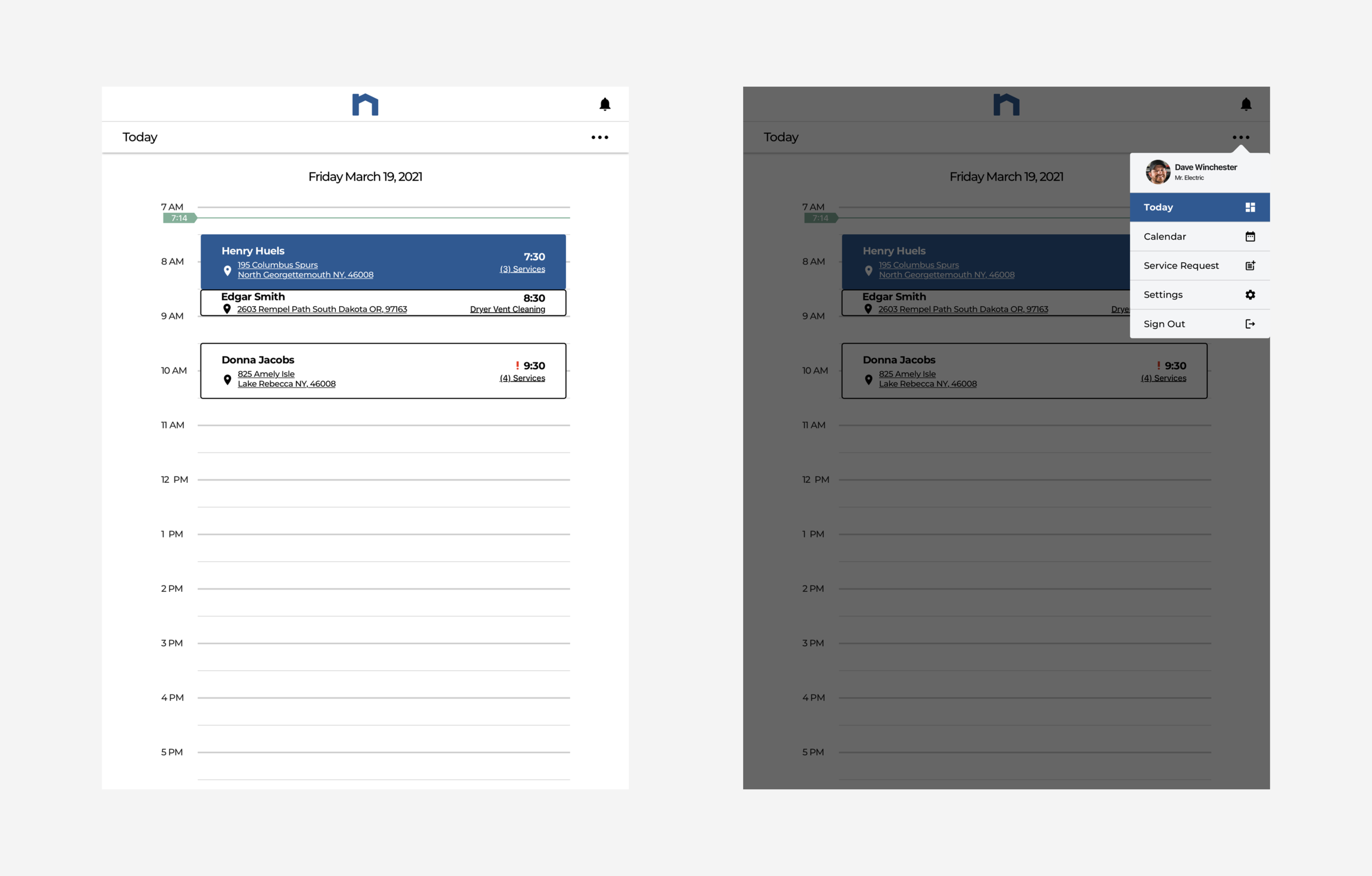
Today + menu
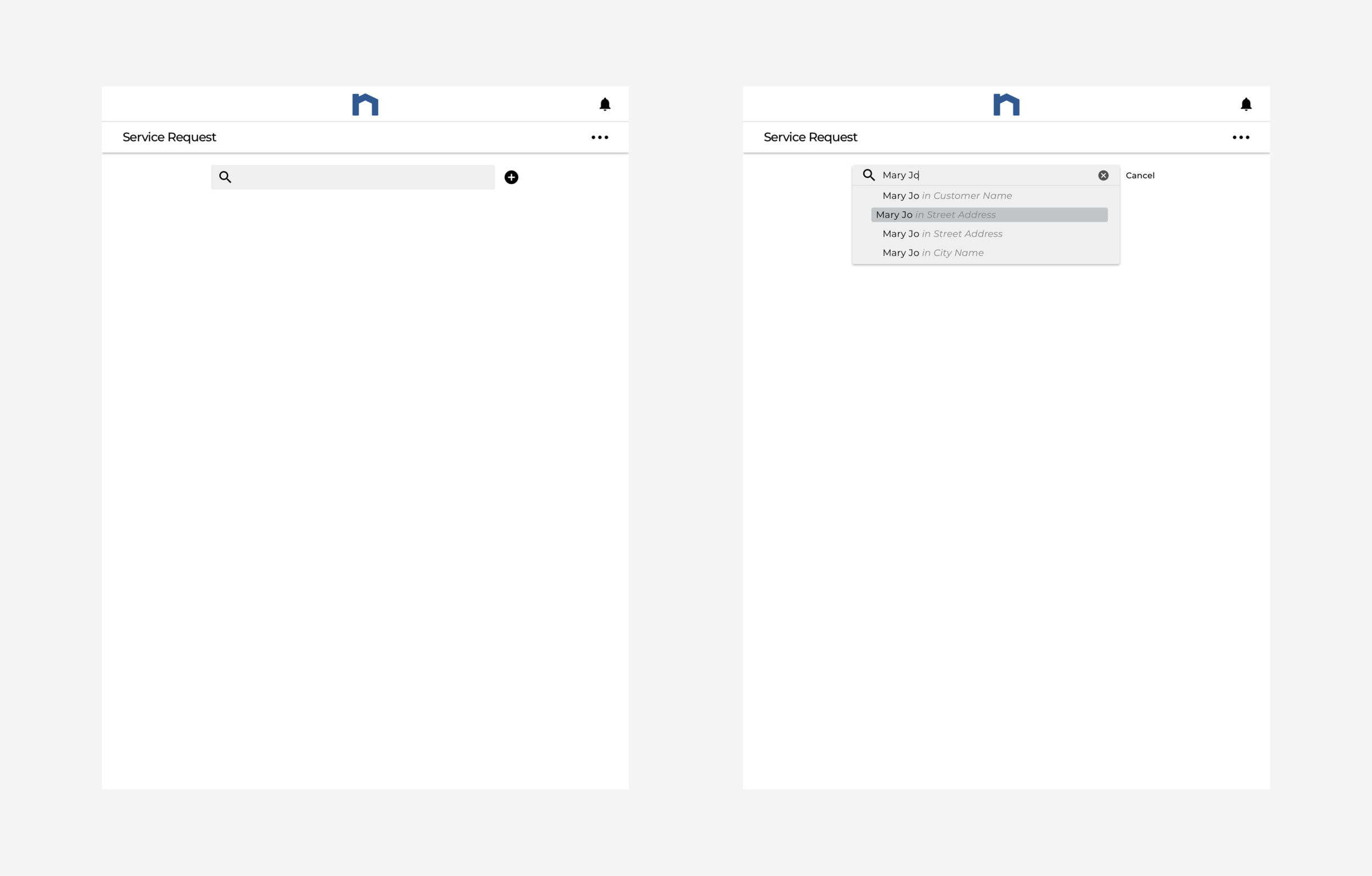
Search for customer